
A poster title
- Core prompt
- Tall condensed lettering in brushed silver, crisp edges and generous spacing.
- Scene prompt
- Dark blue background with soft side lighting and clear space around the title.
Turn a short phrase into a title image. Choose a style, layout and canvas, then review the credit cost before generating. Results are image artwork, not installable fonts or copyable text.
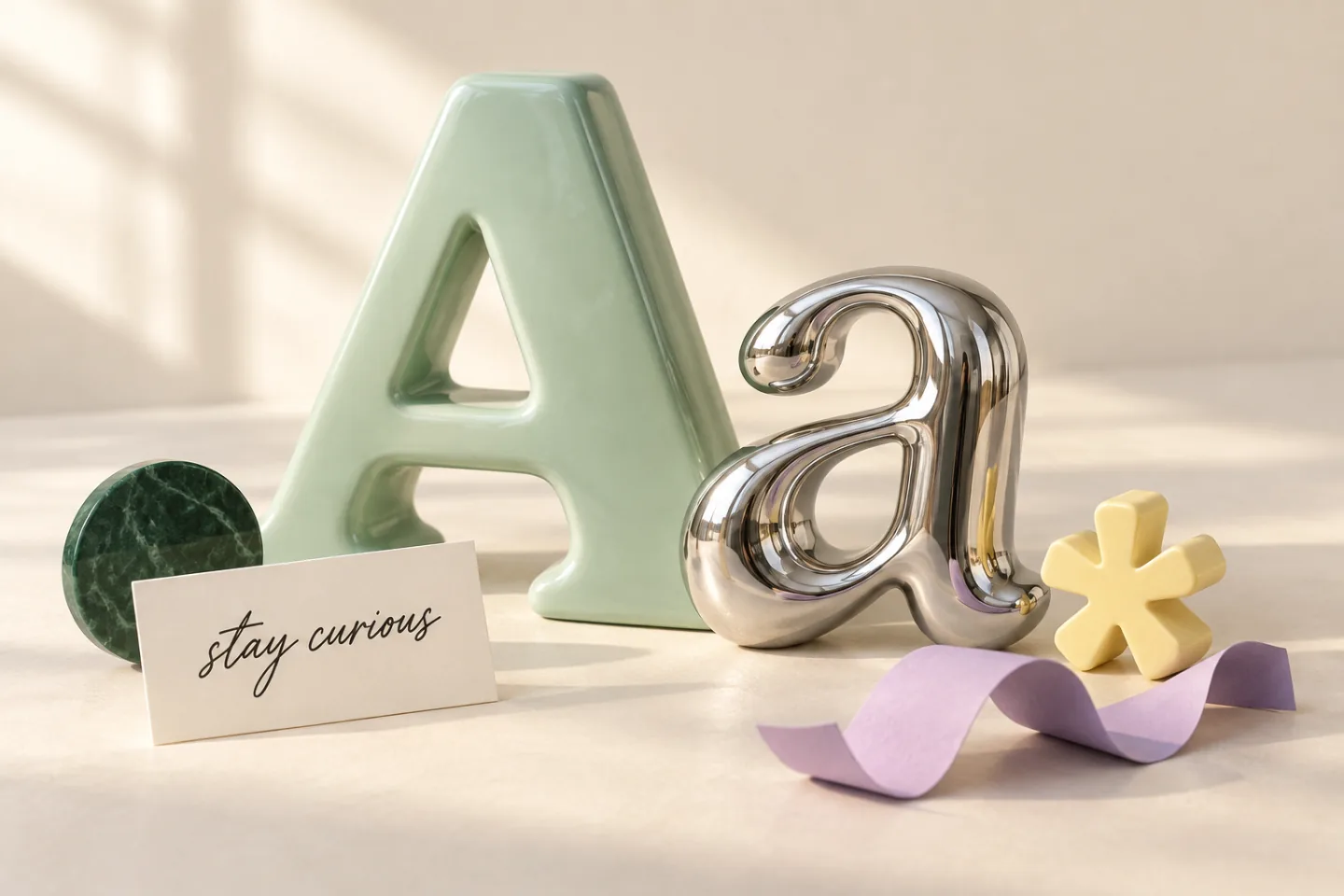
A practical guide to the lettering studio
Create one image from your phrase, letterforms and scene. This workspace adds composition, canvas and export controls to the compact homepage generator.
Separate your words from the visual brief
Put only the phrase you want to see in Words on the image, up to 64 characters. Describe letter shapes, colors and materials in Core prompt. Use Scene prompt for the background and surroundings.
Choose shape, surface and composition
A font direction guides letter shapes; a lettering style guides their finish and setting. Pick a composition if you need a particular arrangement, then choose a canvas ratio that fits your design.
Review before you export
Check the displayed credit cost before generating. Inspect every letter, accent and punctuation mark at full size. If the text is wrong, shorten the phrase or simplify the style before trying again; exporting cannot correct the lettering.
Two briefs you can adapt
Keep your own title or name in Words on the image. These examples describe the appearance, not the text to render.
A poster title
A name graphic
For four ready-made sci-fi looks, try the Star Wars font generator.
Choose an image format for your project
Results are image artwork, not installable fonts or copyable text.